Organizing files and folders works best when you use a small, repeatable system: one place for active work, one place for reference material, and one place for finished archives. The goal is not a perfect folder tree. The goal is to find the right file quickly, avoid duplicates, and protect important work from accidental loss.
File-order takeaway
Use broad folders first, clear file names second, and search as a safety net. Put new downloads in an inbox, review that inbox weekly, and move finished work into an archive only after it is backed up.
Start with the files you touch most
Do not begin by reorganizing every old file on the computer. Start with the areas that cause friction: Desktop, Downloads, Documents, screenshots, client folders, school folders, tax records, or shared-drive projects. A good first pass is simple: create a temporary folder named Review, move loose files into it, and sort them in small batches. This prevents a cleanup session from turning into a scavenger hunt.
If you use Windows, Microsoft's folder guidance is a useful reminder that folders are meant to reduce clutter, not create a maze. On macOS or ChromeOS, the same idea applies even if the file manager looks different. Folder systems should follow the way you actually work, not the way software labels storage areas.
A practical structure often starts with four top-level folders: Active, Reference, Personal Admin, and Archive. Active is for work currently in progress. Reference is for material you need to keep but rarely edit, such as templates, research, PDFs, or notes. Personal Admin is for bills, IDs, warranty documents, travel, tax files, and household records. Archive is for completed work that should not be mixed with current tasks.
Build a folder map that does not collapse under detail
Folder names should answer one question: where would you look first? For most people, a shallow structure is better than a highly detailed one. Instead of creating a folder for every tiny topic, use two or three levels and rely on file names for the fine detail. For example, a freelancer might use Active > Client Name > Project Name. A student might use School > Semester > Course. A household folder might use Personal Admin > 2026 Taxes or Personal Admin > Insurance.
A useful rule is to avoid folders that hold only one or two files unless those files are part of a sensitive or high-value category. Too many tiny folders make browsing slower. Too few folders make searching harder. The right balance is the point where you can open a folder and understand the contents without scrolling through hundreds of mixed files.
If you are also learning how web addresses and online accounts fit together, the same principle appears in domains and URLs: labels need to be meaningful before they are clever. A folder named Final may feel clear today, but Final-v3-approved-sent is much clearer six months from now.
Use file names that sort and search well
A good file name contains the date, topic, version, and status when those details matter. The most reliable date format is year-month-day, such as 2026-05-12, because it sorts correctly in many file managers. A proposal might become 2026-05-12-clientname-website-proposal-v01.docx. A signed copy might become 2026-05-20-clientname-website-proposal-signed.pdf.
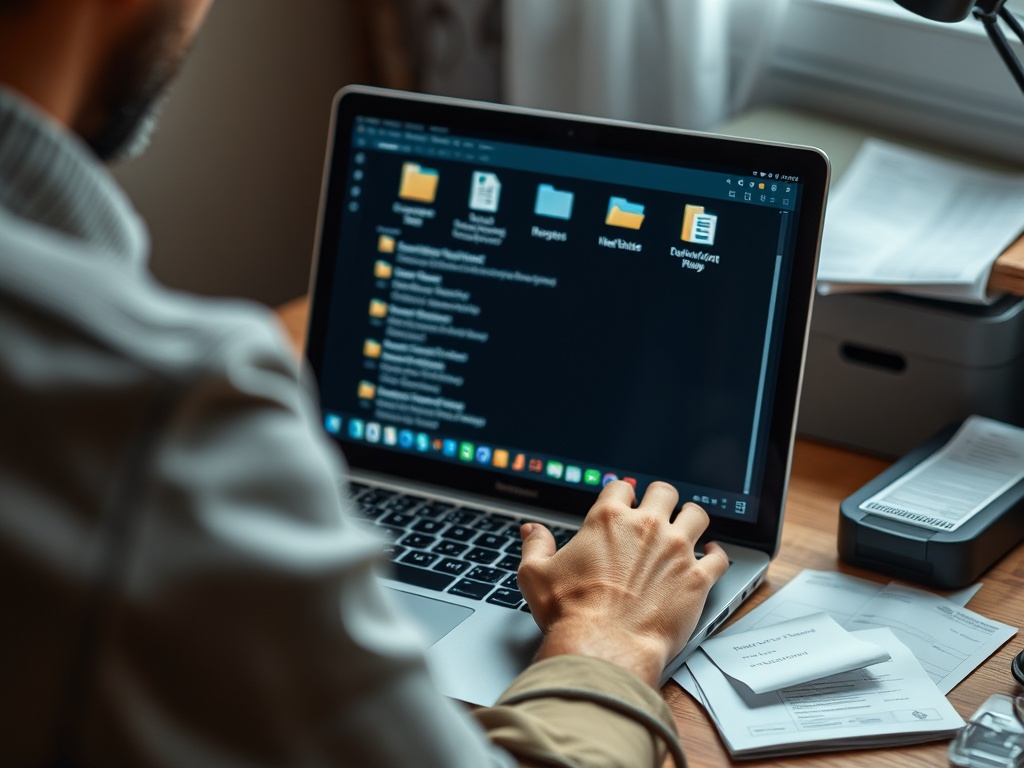
Avoid vague names such as new document, scan, image, final, copy, or revised. Also avoid special characters that can cause syncing or compatibility problems. Spaces are usually fine, but hyphens and underscores can make names easier to read in shared folders, URLs, or automation tools. Consistency matters more than the exact style.
| File type | Better naming pattern | Why it helps |
|---|---|---|
| Invoices | 2026-05-vendor-invoice-paid.pdf | Groups by month and payment status |
| Screenshots | 2026-05-12-login-error-screenshot.png | Makes troubleshooting easier |
| Drafts | topic-client-v01.docx | Keeps versions in order |
| Final PDFs | topic-client-approved.pdf | Shows what can be sent or archived |
Keep Downloads as an inbox, not a storage room
Downloads should be treated like a mail tray. Everything lands there, but nothing important should live there permanently. Once or twice a week, open Downloads and take four actions: delete what you do not need, rename what you will keep, move active files into project folders, and archive completed records.
Screenshots deserve the same discipline. If your desktop fills with images, create a Screenshots Review folder and clear it on a schedule. Keep only images that document a bug, receipt, design example, or decision. Delete duplicates and temporary screenshots after the task is finished.
Separate sync from backup
Cloud storage is useful, but sync is not the same as backup. A synced folder keeps files available across devices, but a mistaken deletion can sync too. Keep a separate backup for important files, especially financial records, client work, creative projects, and irreplaceable personal documents. That backup can be a trusted cloud backup service, an external drive, or both.
Device choices also affect file habits. A browser-first computer may encourage cloud organization, while a multi-monitor desktop may support bigger local project folders. If screen space is part of your problem, the guide to 1080p vs 1440p can help you think about how much workspace you actually need. If you mostly work in web apps, the ChromeOS workflow guide can also help you decide how much local storage matters.
Quick success checklist
- Create one Active folder and one Archive folder.
- Rename new files before saving them into long-term folders.
- Use dates in year-month-day format for records and versions.
- Empty Downloads weekly.
- Back up valuable folders outside the main sync location.
- Keep shared folders cleaner than personal folders, because other people must understand them too.
When a deeper fix is needed
Escalate the cleanup if files are missing, duplicated across several cloud accounts, locked behind unknown passwords, or scattered across old devices. In those cases, pause the reorganization and make a backup first. Then identify which account owns each file, which device has the newest copy, and which folders are safe to delete.
Start with one clean folder today
Pick the folder that wastes the most time and rebuild only that one. A working file system grows through small habits: clear names, simple locations, weekly review, and reliable backup. Once the first folder becomes easy to use, copy the pattern to the rest of your computer.