Ethernet problems usually come from weak links in the chain: old cables, slow ports, poor switch placement, damaged connectors, bad adapters, or confusing Ethernet with Wi-Fi coverage. Fix the physical path first, then test the router, switch, device, and internet service.
Wired-network trouble in one sentence
Ethernet is reliable when every part of the path supports the speed and distance you expect. One old cable, cheap adapter, overloaded switch, or incorrect wall jack can make a strong internet plan feel slow.
Mistake 1: Assuming Ethernet improves Wi-Fi coverage by itself
Ethernet does not create wireless coverage unless it connects to an access point, mesh node, or router that broadcasts Wi-Fi. Running a cable to the far side of a building can help only if you attach the right network device at the other end. If the cable ends at a desktop computer, that computer gets a wired connection, but phones and tablets nearby may still have weak Wi-Fi.
This matters because people often describe "coverage" when they mean two different problems: wired speed to one device or wireless signal across a space. Diagnose them separately. Ethernet is the backbone. Wi-Fi is the radio layer. Both must be planned.
IEEE 802.3 is the working group behind Ethernet standards. Most home and small-office users do not need to read standards documents, but the existence of standards explains why cables, switches, and ports must match expected capabilities.
Mistake 2: Keeping old or damaged cables in service
Old cables can still pass traffic while silently limiting speed or creating intermittent drop-offs. Kinks, crushed sections, broken clips, frayed ends, loose wall plates, and poorly terminated connectors are common causes. If a connection is unstable, replace the cable with a known-good cable before replacing the router.
Also confirm cable category and run length. Cisco's older but still useful Ethernet cable specifications show how cabling details affect Ethernet behavior. For everyday users, the lesson is simple: cable quality, correct pinout, and distance matter.
Mistake 3: Ignoring the slowest port in the path
A gigabit laptop connected through a 100 Mbps switch will behave like a 100 Mbps connection. A fast internet plan connected through an old router, USB adapter, or powerline device can look disappointing even when the provider is delivering the plan correctly. Check each link: modem, router WAN port, router LAN port, switch, wall jack, adapter, and device port.
| Symptom | Possible Ethernet cause | Quick check |
|---|---|---|
| Speed capped near 90 Mbps | 100 Mbps port or bad cable negotiation | Check link speed in device settings |
| Random drop-offs | Damaged cable or loose connector | Test with a short known-good cable |
| One room is slow | Bad wall jack or long cable path | Plug directly into router for comparison |
| Wi-Fi weak after wiring | No access point at far end | Add a wired access point or mesh node |
| Video calls lag | Upload bottleneck or switch congestion | Test another device on the same cable |
Mistake 4: Daisy-chaining random switches
Switches are useful, but unmanaged piles of cheap switches can make troubleshooting hard. If one switch loses power or develops a fault, every device downstream suffers. Keep the network map simple: router to main switch, then direct runs to rooms or devices where possible. Label cables on both ends.
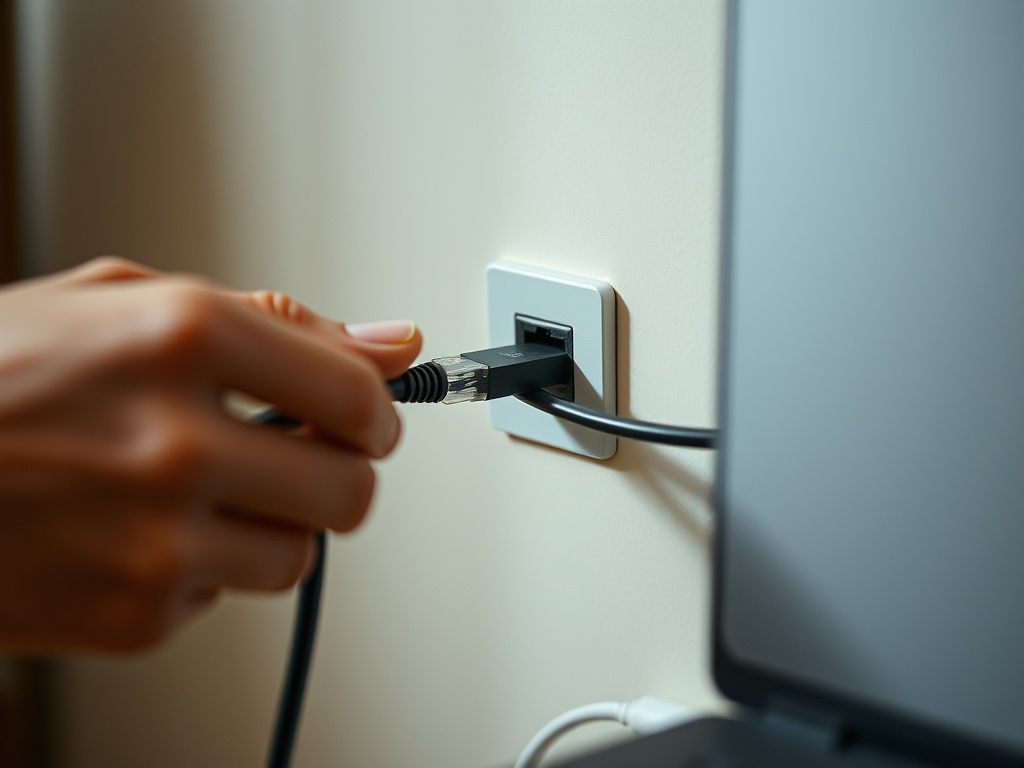
For small spaces, one quality switch may be enough. For larger homes or offices, plan cable runs and access points rather than improvising with adapters. If your issue involves website access instead of local speed, the primer on domains and URLs can help separate internet addressing problems from wiring problems.
Mistake 5: Using Ethernet over adapters without testing
USB Ethernet adapters, docks, powerline kits, and MoCA adapters can be useful, but they add variables. A laptop dock may support gigabit on paper yet behave poorly under heat, driver issues, or low-quality cables. Powerline performance depends on electrical wiring. MoCA depends on coax setup and filters. Test adapters under real workload before building the whole network around them.
This is especially relevant when an external monitor, dock, and network connection all share one USB-C hub. If you are comparing display setups, the 1080p vs 1440p guide can help you check whether the dock is also carrying video demands that affect the rest of the setup.
Mistake 6: Forgetting about router and internet limits
A perfect Ethernet cable cannot fix a weak router, overloaded internet plan, poor DNS resolver, distant server, or congested upload link. Run tests in order. First, test one device wired directly to the router. Second, test through the normal switch or wall jack. Third, test Wi-Fi in the same room. Fourth, compare upload, download, latency, and packet loss.
If direct Ethernet is fast but Wi-Fi is poor, improve access-point placement. If direct Ethernet is slow, check the modem, router, ISP plan, and device settings. If only one service is slow, the problem may be outside your network.
Correction checklist
- Replace suspect cables before replacing network gear.
- Check link speed on the device, not just internet speed.
- Label cables, wall ports, and switch ports.
- Avoid long chains of small switches.
- Use wired access points for Wi-Fi coverage gaps.
- Test with one known-good device before blaming every device.
- Review privacy and account settings separately from network settings using the guide to privacy settings across major platforms.
A five-minute isolation test
When Ethernet feels unreliable, isolate one variable at a time. Plug a known-good cable directly from the router to one trusted laptop and run a speed and latency test. Then use the same cable through the switch. Then test the wall jack. Then test the usual cable and adapter. Write down each result. This quick sequence shows whether the problem follows the device, cable, switch, wall run, or internet connection. It also prevents unnecessary purchases, because many wired-network problems are solved by replacing one cable or removing one weak adapter rather than buying a new router.
Test the cable path before buying gear
Ethernet is usually dependable because it is physical and testable. Follow the path from device to router, replace the weak link, and keep Wi-Fi coverage planning separate from wired-speed troubleshooting.