Choose 1080p when cost, simple office work, and modest hardware matter most. Choose 1440p when you want more usable workspace, sharper text on a larger monitor, or better multitasking without jumping all the way to 4K.
Resolution choice in one view
A 1080p display usually means 1920 by 1080 pixels. A 1440p display usually means 2560 by 1440 pixels. The second option has more pixels, so it can show more detail, but the final experience depends on screen size, viewing distance, scaling, eyesight, and the power of the device driving the monitor.
What the numbers actually change
Resolution is not the only cause of blurry or cramped screens. A 24-inch 1080p monitor can look comfortable for email, browsing, and spreadsheets. A 32-inch 1080p monitor may look soft because the same number of pixels is stretched over a larger area. A 27-inch 1440p monitor is often a practical middle ground because it gives more workspace without making interface elements tiny for many users.
Dell's explanation of display pixels is useful for understanding that pixels are the physical picture elements that form the image. Higher resolution adds more of those picture elements, but it does not automatically fix poor scaling, a low-quality panel, wrong cable settings, weak graphics hardware, or a bad app layout.
If your main problem is file clutter rather than screen space, start with organizing files and folders before buying hardware. Better organization can make a small screen feel less chaotic.
Practical comparison
| Factor | 1080p | 1440p |
|---|---|---|
| Common sweet spot | 21 to 24 inches | 27 inches |
| Workspace | Enough for one main app | Better for split-screen work |
| Text sharpness | Good at smaller sizes | Sharper on larger screens |
| Hardware demand | Easier on older laptops and GPUs | Needs more graphics output capacity |
| Price | Usually lower | Often higher but not premium like 4K |
| Best fit | Basic work, budget setups, older hardware | Multitasking, design review, coding, spreadsheets |
The best option is not the one with the bigger number. It is the one that matches screen size and work style. A person who writes documents all day may prefer a sharp 27-inch 1440p display. A person who mostly attends calls, checks dashboards, and uses a browser may be fine with 1080p if the monitor is not oversized.
When 1080p still makes sense
1080p is still a strong choice for simple setups, training rooms, shared desks, older laptops, point-of-sale devices, and budget workstations. It is easier to drive over basic HDMI or USB-C adapters, and it usually creates fewer scaling surprises. If you use one app at a time, 1080p may be enough.
It also makes sense when refresh rate matters more than workspace. Some gamers choose 1080p because it can be easier to reach higher frame rates with midrange graphics hardware. That is a use-case decision, not a sign that 1440p is unnecessary for everyone else.
When 1440p is worth the upgrade
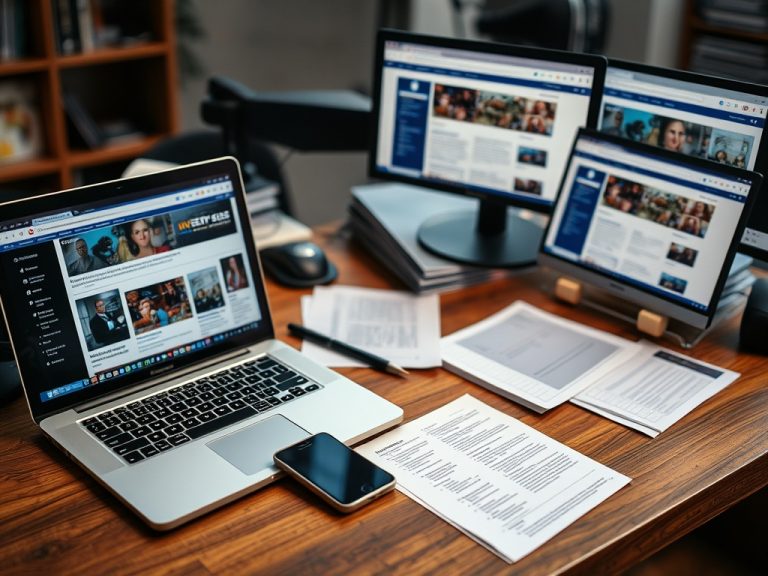
1440p becomes valuable when the screen feels crowded. If you constantly resize windows, hide sidebars, switch tabs, or zoom out to fit more columns, more pixels can help. It is especially useful for spreadsheets, code editors, design review, content planning, video timelines, analytics dashboards, and writing with research open beside the draft.

A 1440p screen also tends to make text and interface elements look cleaner at common 27-inch sizes. That does not mean every person will prefer it. Some users need larger scaling for comfort, and scaling reduces the visible workspace advantage. Try to preview the monitor at the size and scaling you expect to use.
If you work from a Chromebook, check output limits before buying. The ChromeOS workflow guide is a useful starting point because not every lightweight laptop is built for the same external display setup. Network problems can also feel like device problems, so review Ethernet mistakes if lag is part of the complaint.
Common causes of blur that resolution will not fix
A monitor can look blurry because the operating system is using the wrong resolution, the cable or dock does not support the selected mode, scaling is poorly configured, the app is not rendering sharply, or the panel is being viewed from a poor distance. Before replacing hardware, check the display settings and confirm that the monitor is running at its native resolution.
Also check cable quality and port capability. A basic adapter may support 1080p well but struggle with higher refresh rates or higher resolutions. If the image improves when connected directly to the laptop, the dock or adapter may be the bottleneck.
Simple buying framework
Choose 1080p if you want the lowest cost, use a 21- to 24-inch display, work in one main window, or connect older hardware. Choose 1440p if you want a 27-inch display, need two documents side by side, work with dense interfaces, or feel cramped even after organizing apps and files.
Comfort checks before you decide
Display comfort is partly technical and partly physical. Before buying, sit at the distance you normally use, open the apps you use most, and check text size, brightness, reflections, and window layout. A sharper monitor can still feel tiring if brightness is too high, the stand is too low, or the operating system scaling makes menus awkward. If possible, test a 27-inch 1440p screen with two windows side by side and a 24-inch 1080p screen with one main window. The better option is the one that reduces zooming, squinting, and window juggling during a real work session.
Pick the resolution around the work
Do not buy resolution as a trophy spec. Match it to screen size, daily tasks, connection limits, and your tolerance for scaling. For many office and creative workflows, 1440p is the more comfortable long-term choice. For simple workstations and tight budgets, 1080p remains practical.